Category Archives: General

Colour Cube

The colour cube is a clever way of showing all the colours possible in the RGB colour space that computer monitors use; in which the three axes of the cube are assigned to the three primary colours of light: red, green and blue.

In the diagram below green is on the x-axis (left-to-right), red on the y-axis (up and down) and blue on the z-axis (in and out of the page).
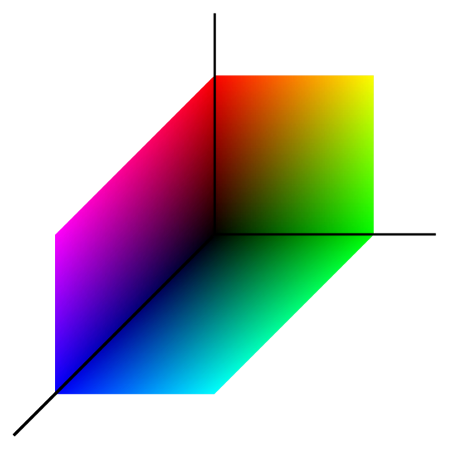
You can also see all but one of the important corners:

  • Total absence of colour: black
  • Primary (pure) colours: red, green and blue
  • Secondary colours: cyan (blue + green), magenta (blue + red) and yellow (red + green)

The missing corner is a combination of all three colours: white.

I decided to make a real-life colour cube.
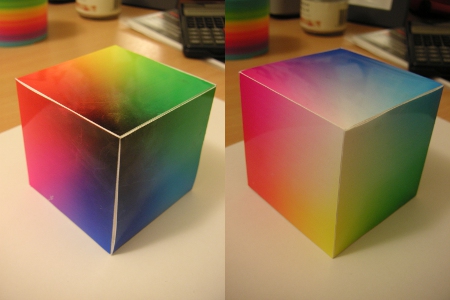
If you’d like to make your own you can download the template. There are two versions, one with black lines along the edges so you know where to fold, and one without.

How to make nicer graphs in Microsoft Excel

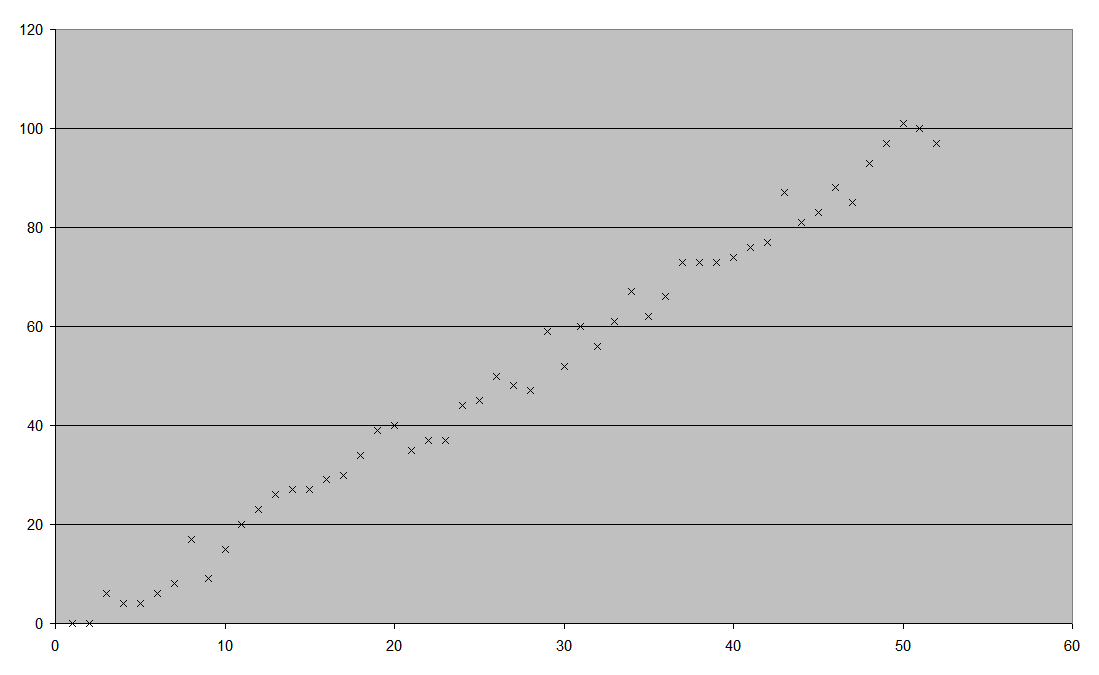
I really hate it when I’m presented with a graph like this one:

Ugly default graph

It’s instantly recognisable as one created in Microsoft Excel. For some reason the default settings in Excel produce some of the the ugliest graphs I’ve ever seen.

Step 1 – Fix the data points themselves

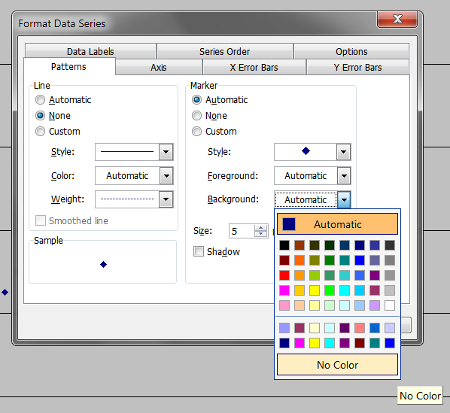
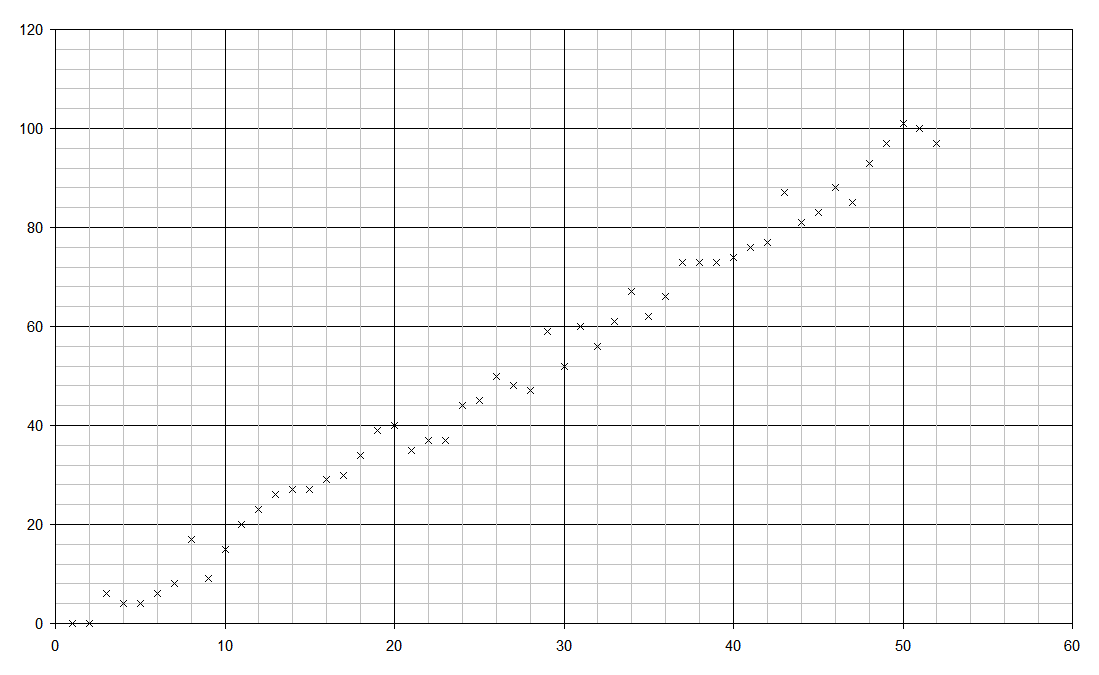
Nobody in their right mind plots data points as little diamonds – we use crosses. Selecting “Format Data Series” enables you to set the background colour to Transparent and the style to a little cross. The colour of the cross is up to you; I tend to stick with traditional black.

Step 2 – Get rid of the background

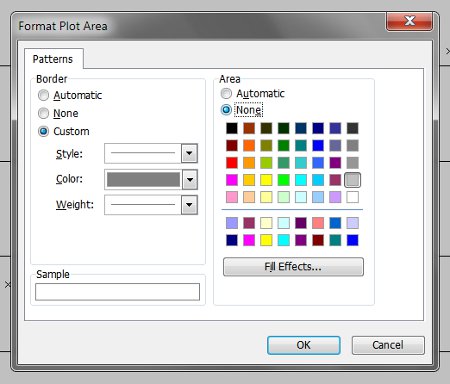
Grey background? Why, Excel, why? Set the ‘Plot Area’ colour to none.

Step  3 – Gridlines

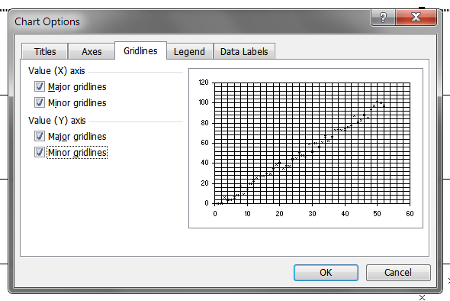
“Standard” graph paper tends to have two sets of lines – thicker major gridlines and thinner minor gridlines. I see no reason why Excel graphs should be any different. Under “Chart Options” there are checkboxes for major/minor gridlines on both the x- and y-axes.

I find that setting the minor gridlines on both axes to a pale grey makes things look nicer. If you’re going to print your graph (or photocopy it) then you’ll want to increase the thickness of the lines too.

Step 4 – The legend

Why Excel puts the legend on the right of the graph I don’t know. Most of the time it’s not needed, and when it is needed it’s far more space-efficient to put it at the top or bottom of the plot area.

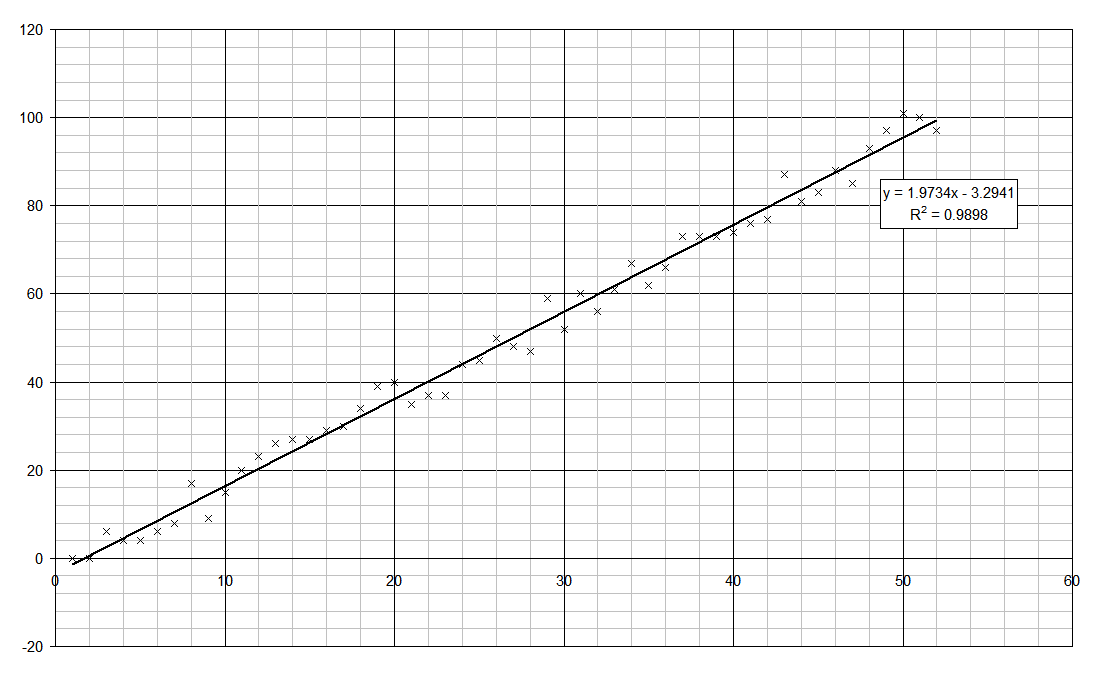
Step 5 – Line of best fit

Excel calls lines of best fit ‘Trendlines’ so make sure you add a trendline. Make sure that you choose the right type – exponential for radioactive decay, power for simple pendula, etc.

Step 6 – Axes

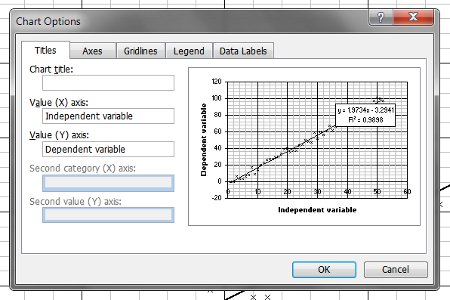
Your axes need to be properly labelled.

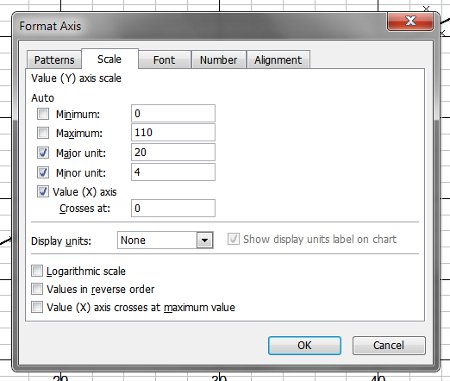
It’s a good idea to adjust the scales as well.

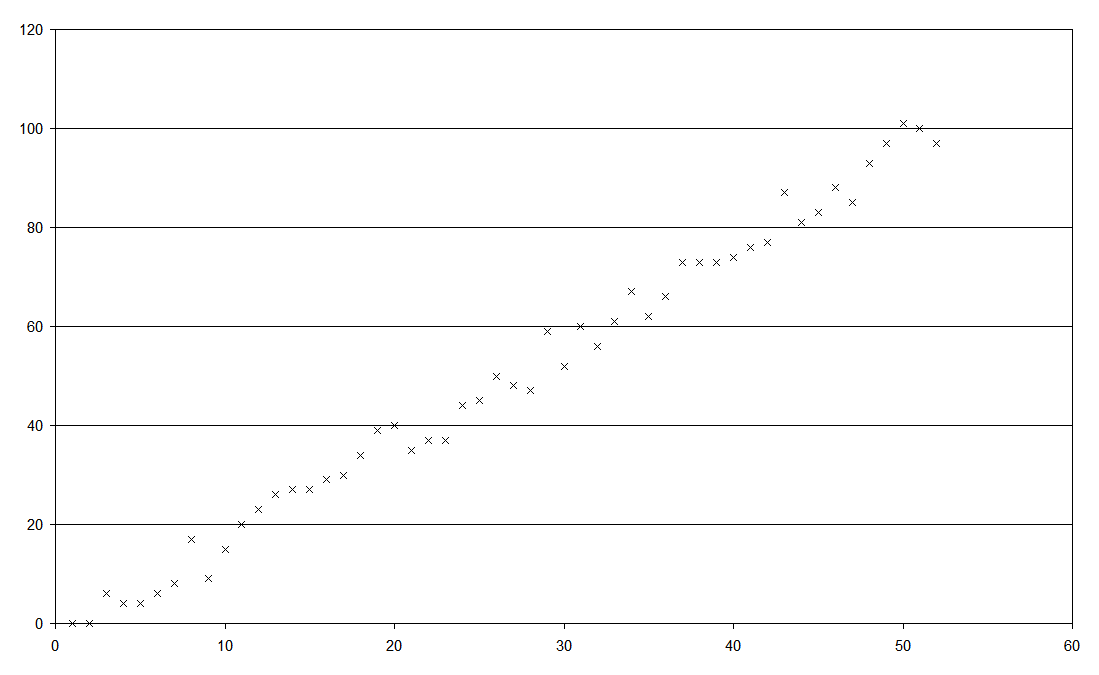
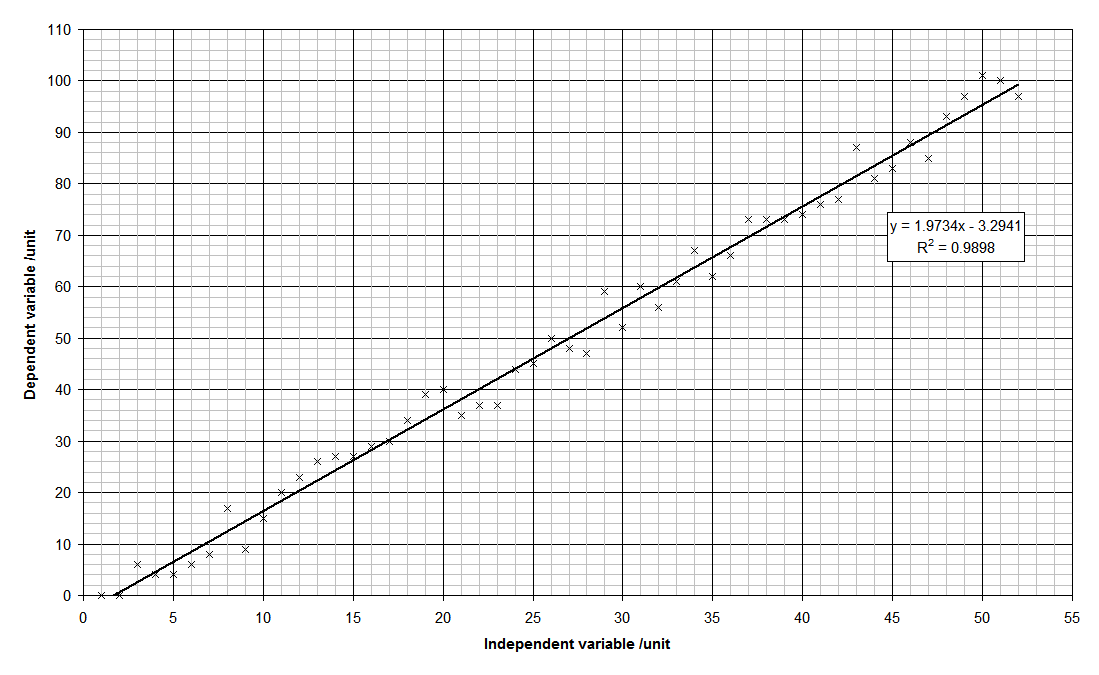
The Finished Product